Wandering Jon

Jon Brown's take on travel, photography, technology and WordPress.

StackExchange Activity

profile for jb510 on Stack Exchange, a network of free, community-driven Q&A sites

Powered by Genesis

Home » Archives for Jon Brown » Page 12

WordPress Local Development Tips

June 16, 2013 by Jon Brown 7 Comments

A long time ago I wrote a post on local development tricks for WordPress. Things have evolved over time and rather than update that old post on OCWP here is a new one complete with all sort of new tweaks.

I tend to work in two or three enviroments: Local, Staging, Production. Staging is the optional one. Everything is under version control with git.

To make this workflow easy and fairly safe I’ve developed a few tricks over the years which I’ll share here.

Tweaking the WordPress Config File

The first step is a few tweaks to the normal wp-config file that tells it to conditionally load a alternative wp-config-local.php file if it happens to exist. Inside wp-config I also tweak a couple defines such that they only get set if they’re not already set so I can change them in that local config file.

Note: this is almost entirely based on Mark Jaquith’s setup discussed here). I’m mostly focusing here on how I’ve modified his setup, so it’s helpful to read his original writeup as well.

Changes to wp-config.php

// ** MySQL settings - You can get this info from your web host ** //
if ( file_exists( dirname( __FILE__ ) . '/wp-config-local.php' ) ) {
	include dirname( __FILE__ ) . '/wp-config-local.php';
} else {
	define('DB_NAME', 'livedb_name');
	define('DB_USER', 'livedb_user');
	define('DB_PASSWORD', 'livedb_pwd');
	define('DB_HOST', 'localhost');
	define('DB_HOST_SLAVE','localhost'); //WPE
	define('DB_CHARSET', 'utf8'); //WPE
	define('DB_COLLATE', ''); //WPE
	$table_prefix  = 'wp_';
}

That should looks somewhat familar to folks, all I’ve really done is moved $table_prefix up and then wrapped the whole shebang in and if/else statement. Now if wp-config-local.php exists, it’s settings are loaded and the production server settings are skipped, otherwise the production server settings get loaded.

Note: It’s entirely optional to move $table_prefix in here, just don’t try to define it twice. I’ve moved it here because sometimes I increment table prefixes in the manner Bill Erickson describes for migrating wordpress databases.

Also note: You may not have DB_HOST_SLAVE, DB_CHARSET and DB_COLLATE, these are in there for WP Engine. wp-config-sample.php doesn’t have these, but since most of my development is done on WP Engine now thanks to how easy it is to spin up dev sites and work with git, I keep those in my default install template.

Further down the wp-config.php file I’ll tweak WP_DEBUG and sometimes WP_CACHE if it’s set

define('WP_DEBUG', false);

gets changed to

if ( !defined('WP_DEBUG') )
	define('WP_DEBUG', false);

Finally it has nothing to do with local development, but I always add

/** Disable WP File Editor */
define('DISALLOW_FILE_EDIT', true);

to wp-config as well.

WordPress Local Config File

Local Database Config

With tweaks made to wp-config.php it’s time to create a local config file in root named wp-config-local.php. The complete file is at the end of this post, but I’ll walk through it part by part:

The wp-config-local.php file starts by setting local or staging creds

define('DB_NAME', 'default_localdb');
define('DB_USER', 'root');
define('DB_PASSWORD', 'local');
define('DB_HOST', 'localhost' ); // Probably 'localhost'
$table_prefix  = 'wp_';

Again, that should be pretty familiar territory if you’ve ever worked with WordPress. You’ll may notice that I don’t have those WPE defines I mentioned before since I don’t need them locally although they wouldn’t hurt either.

Site URLs

Next the wp-config-local.php file sets WP_SITEURL and $WP_HOME

$live = 'https://domain.com/'; // CHANGE to live url
$lcl = 'https://lcl.domain.com/'; // CHANGE to local url

define('WP_HOME',	 $lcl );
define('WP_SITEURL', $lcl );

I use the amazingly great Migrate WP DB Pro from Brad Touesnard and DeliciousBrains to clone databases from live/local so I don’t always need this, but I do it anyway just in case.  Migrate WP DB Pro does proper serialized string replacements on the fly which makes pulling DB’s regularly off of live sites a breeze compared to logging into PHPMyAdmin if you haven’t checked it out, DO!

Note, I also still keep $live in there just for reference even though I don’t use it for anything at the momment.

Bonus Tip:  I use lcl.domain.com for my local installs (rather than something like domain.dev) for two simple reasons:
#1 I’m a typer and love that chrome auto-completes my urls as I type.  Typing lcl.dom…  gets me my local version, typing dom… or www.dom…  gets the production version of the site to auto-compelte.  Finally dev.dom… will get me to development/staging.  YMMV, but this adds up to save me tons of time every day.
#2 I use 1Password which recognizes www.domain.com, lcl.domain.com and dev.domain.com all as the same site and hence lets me auto-submit credentials to all 3 from a single 1Password record.  This too saves me a ton of time and avoids me having to keep multiple records in 1P.

Debug Constants

define('WP_LOCAL_DEV', true );  // Used by disabled plugin in mu-plugins  
define('WP_DEBUG', true);
define('SAVEQUERIES', false);
define('WP_CACHE', false);
define('JETPACK_DEV_DEBUG', true);
Just to run through them:
WP_LOCAL_DEV – This gets used by an mu-plugin and potentially elsewhere, more on that later
WP_DEBUG – A must and I enable by default locally.
SAVEQUERIES – Off by default. I’m spending more and more time debugging slow sites for people and having this handy is nice since I can never remember if it is SAVEQUERIES or SAVE_QUERIES. This setting adds a huge amount of info inside Debug Bar. I’ve also recently found and become enamored with MySQL Profiler which adds sortable columns to the saved query output.
WP_CACHE – Again I often make this a conditional load in wp-config just like WP_DEBUG.
JETPACK_DEV_DEBUG – A recent addition to JetPack in 2.2.1 that finally lets it run locally without exploding. Yay! More here and here

Plugin to disable other plugins on local/staging

The plugin I mentioned that makes use of the WP_LOCAL_DEV contant is again taken from Mark Jaquith with a minor tweak.

Mark’s plugin is here on GitHub https://gist.github.com/markjaquith/1044546

At the bottom I add a filter to force blog privacy on, ie. the robots no-follow metatag

if ( defined( 'WP_LOCAL_DEV' ) && WP_LOCAL_DEV ) {
	add_filter( 'pre_option_blog_public', '__return_zero' ); // Force blog privacy, robots no-follow metatag
	new CWS_Disable_Plugins_When_Local_Dev( array( 'w3-total-cache/w3-total-cache.php', 'wp-maintenance-mode/wp-maintenance-mode.php' ) );
}

Now, you might ask why I’d set that on local? Well because this is exactly the same thing I do on staging and since this runs via a filter it never changes the option in the DB, it just changes it on page load. This is nice because even if this plugin temporarily made it to production (we all make mistakes) it doesn’t permanently change anything in the database. Don’t use a wp-config-local.php file to set WP_LOCAL_DEV or remove the mu-plugin and the site goes back the way it was.

I always exclude wp-config-local.php from my Git repos by default and Transmit (my FTP client) has a rule to never upload that file to a server.  If I need it on staging I just create it directly there with staging creds and still keep it out of the repo.

Further since now do most of my development on WP Engine thanks to their awesome GIT push for deployment and they force ignoring wp-config.php I’m usually ignoring that file as well. I have mixed feelings on it excluding wp-config.php, but that’s a different discussion.

Note: Once upon a time I created WP_STAGING_DEV, but I’ve since found that unnecessary, my local and staging are almost always identical.

What all this gets us

All this means I can keep my wp-config file sync’d between servers (and outside of WPE under version control). I almost never need to change it, nor do I need to frequently editing DBs after cloning them from the live site. It all works remarkably smoothly.

Here’s my complete wp-config-local.php (remember, none of this works unless you also modify wp-config.php explained up top to look for this file first):


 * @Version		3.0
 * @Author URI	https://www.jbrownstudios.com
 * @Atributuon	Mark Jaquith 
 * @License		GPLv2
 */

define('DB_NAME', 'default_localdb'); #CHANGE
define('DB_USER', 'local_user');  #CHANGE
define('DB_PASSWORD', 'local_pass'); #CHANGE
define('DB_HOST', 'localhost' ); // Probably 'localhost' #CHANGE 
$table_prefix  = 'wp_';

/**
 * Site URLs 
 */
$live = 'https://domain.com/'; #CHANGE to live url but not currently used
$lcl = 'https://lcl.domain.com/'; #CHANGE to local url

define('WP_HOME',	 $lcl );
define('WP_SITEURL', $lcl );

/*
 * Debug on/off for Development
 */
define('WP_LOCAL_DEV', true );  // Used by disable plugin for local dev plugin in /mu-plugins  
define('WP_DEBUG', true);
define('SAVEQUERIES', false);
define('WP_CACHE', false);
define('JETPACK_DEV_DEBUG', true);
Filed Under: Code, WordPress Tagged With: Code, PHP, WordPress

The Spider Bite in Thailand & My Quick Visit to Sukhumvit Hospital

May 26, 2013 by Jon Brown 15 Comments

Here’s the run down on my spider bite in Thailand.

Day 0 (Wed May 22nd): Didn’t actually notice the bite happen if I did I thought it was one of many mosquito bites.
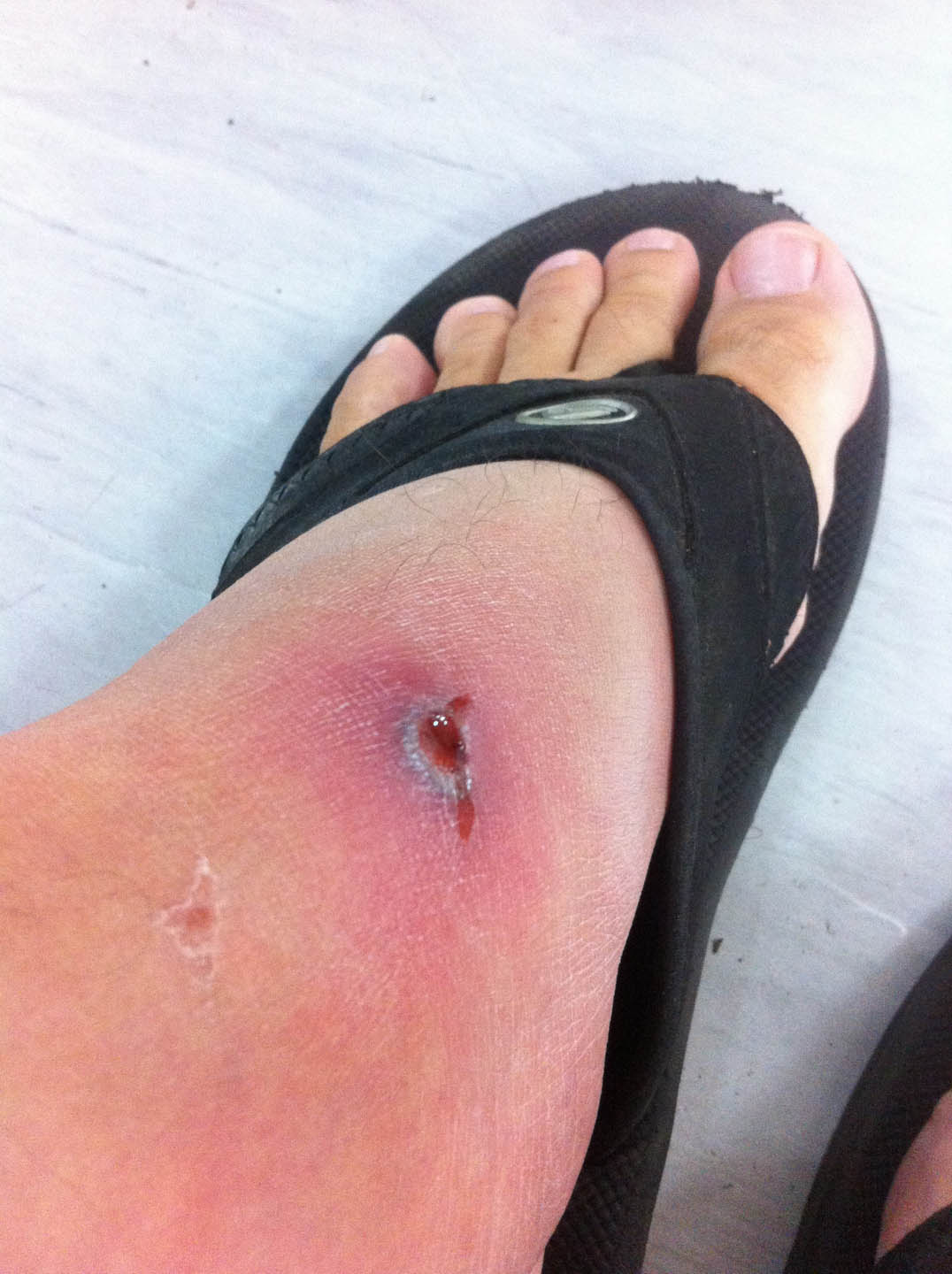
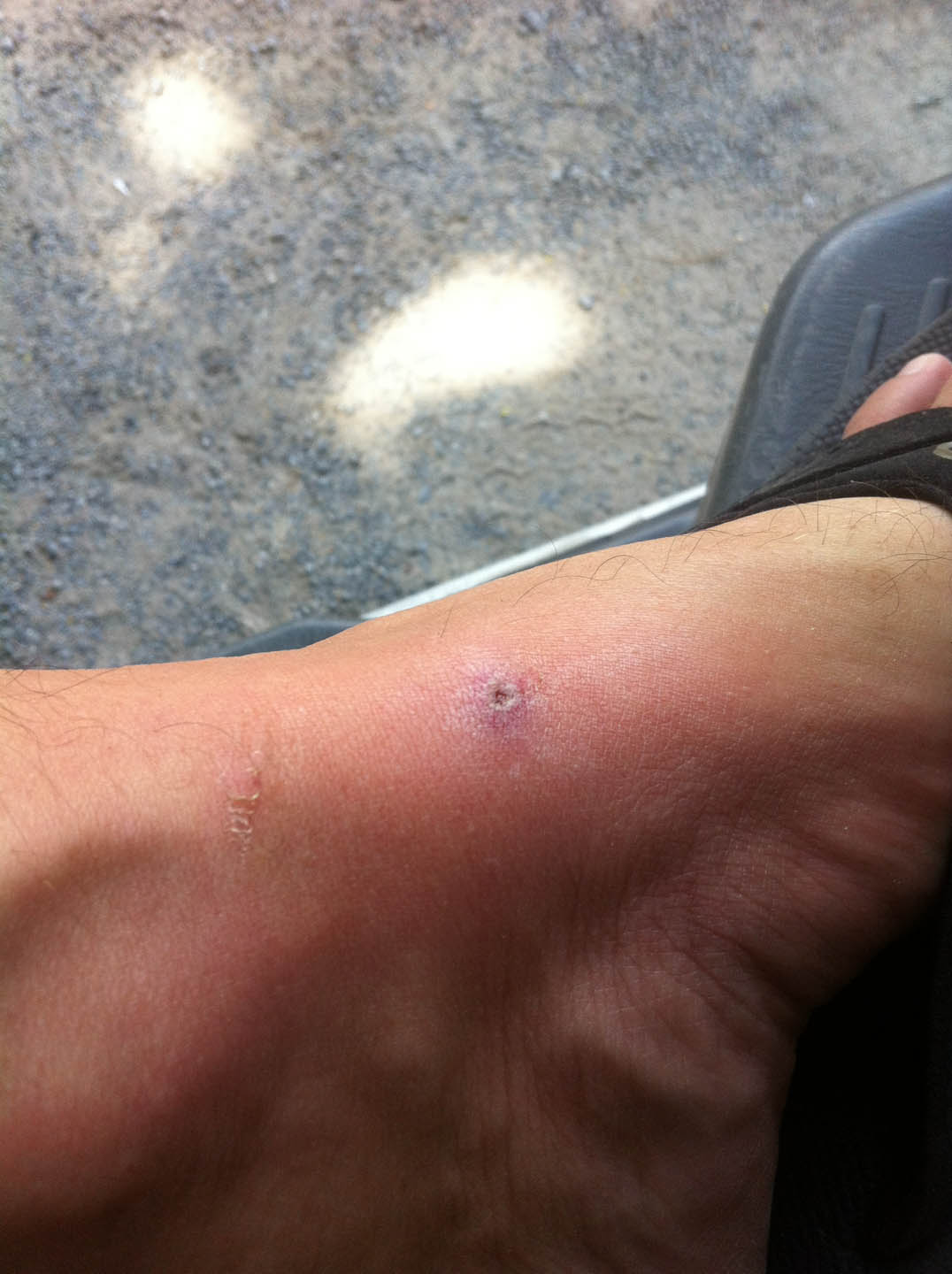
Day 1 (Thur): I notice it but assume it was just a mosquito bite or maybe small jellyfish sting. It’s a little bigger and itchier than a normal mosquito bite, but not much.  I spend the day on a boat and motor scooter going from Koh Phangan to Koh Samui.
Day 2 (Fri): I notice some slight swelling and it’s a little sore. I’m also tired & have a slight fever but am not sure if that’s just from the prior day’s travel or from the bite. I feel like I’ve been in the sun way too much the last few days.  Per my plan, I hope on my scooter, ride to the airport and fly from Samui to Bangkok. I arrive at my nice little air conditioned hotel room mid-day.  I’m exhausted at this point, mild fever and headache.  I lie down and rest rather than my planned shopping excursion.  I end up sleeping ALL afternoon and through the night although I periodically wake to watch movies on Satellite TV. Regardless I literally spent 24 hours lying in bed resting.
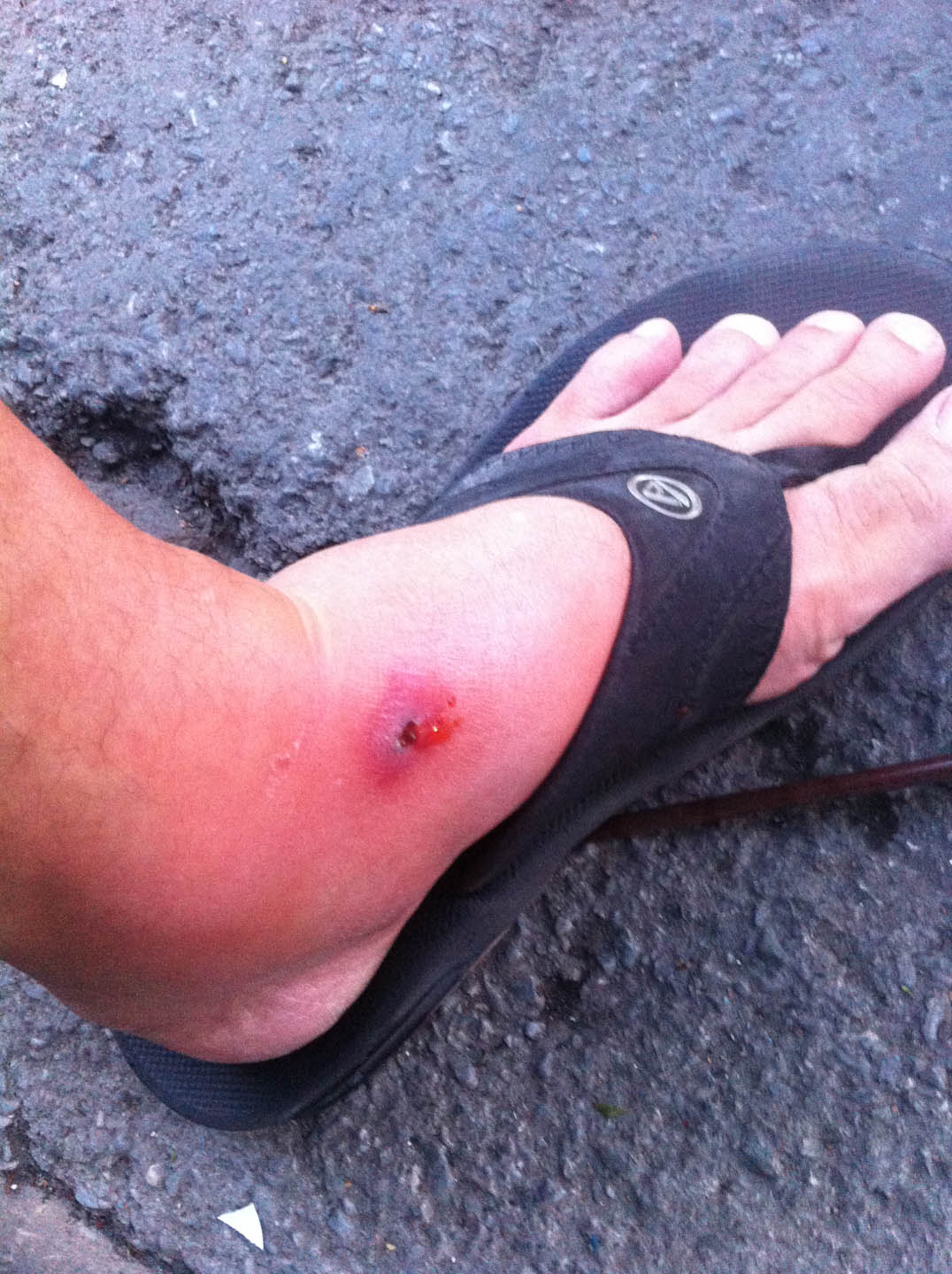
Day 3 (Sat): Awake feeling WAY better, I figure I’m through whatever it was and spend the day walking around little India shopping for curtains for the new house. By the end of the day, my foot is seriously swollen though.  It’s still not really painful, but it’s looking nasty, it’s starting to ooze a little.
Day 4 (Sun): Not much change, but I decide to wisely avoid walking much.  The result is much less swelling but little change otherwise.
Day 5 (Mon AM): The wound is ever so slightly bigger, it is still oozing a tiny bit and the swelling is unchanged.  The more I walk or don’t elevate it, the worse it is.  So I decide to head to the doctor to get it checked out.  I thought about going to Bumrungrad Hospital or Bangkok Hospital (both of which are big world class private hospitals in Bangkok that cater heavily to medical tourists and foreigners), but for something this simple I have no problem with Sukhumvit Hospital which happens to be a 5min walk from where I’m staying and is still one of the best Hospitals in Bangkok if not quite the class of BMG and BH


Day 1 it was even smaller, Day 0 it was no more than a mosquito bite
Day 3 after walking around on it all day… when I’d woken up in the morning there was barely any swelling, it was the same size and redness. Clearly walking around all day was a bad idea.
Day 3 after I finally got home. Again I woke up on Day 4 with very little swelling (I slept wit hit elevated) I decide I’m being stupid at least not covering it up with a bandaid. FWIW, I’d been cleaning it with soap and tea tree oil several times a day, just not covering it as until the big walk around on day 3 it didn’t ooze anything…
Day 5 I give up, getting a little more pain and it’s not “getting better”, so I head to the doctor.
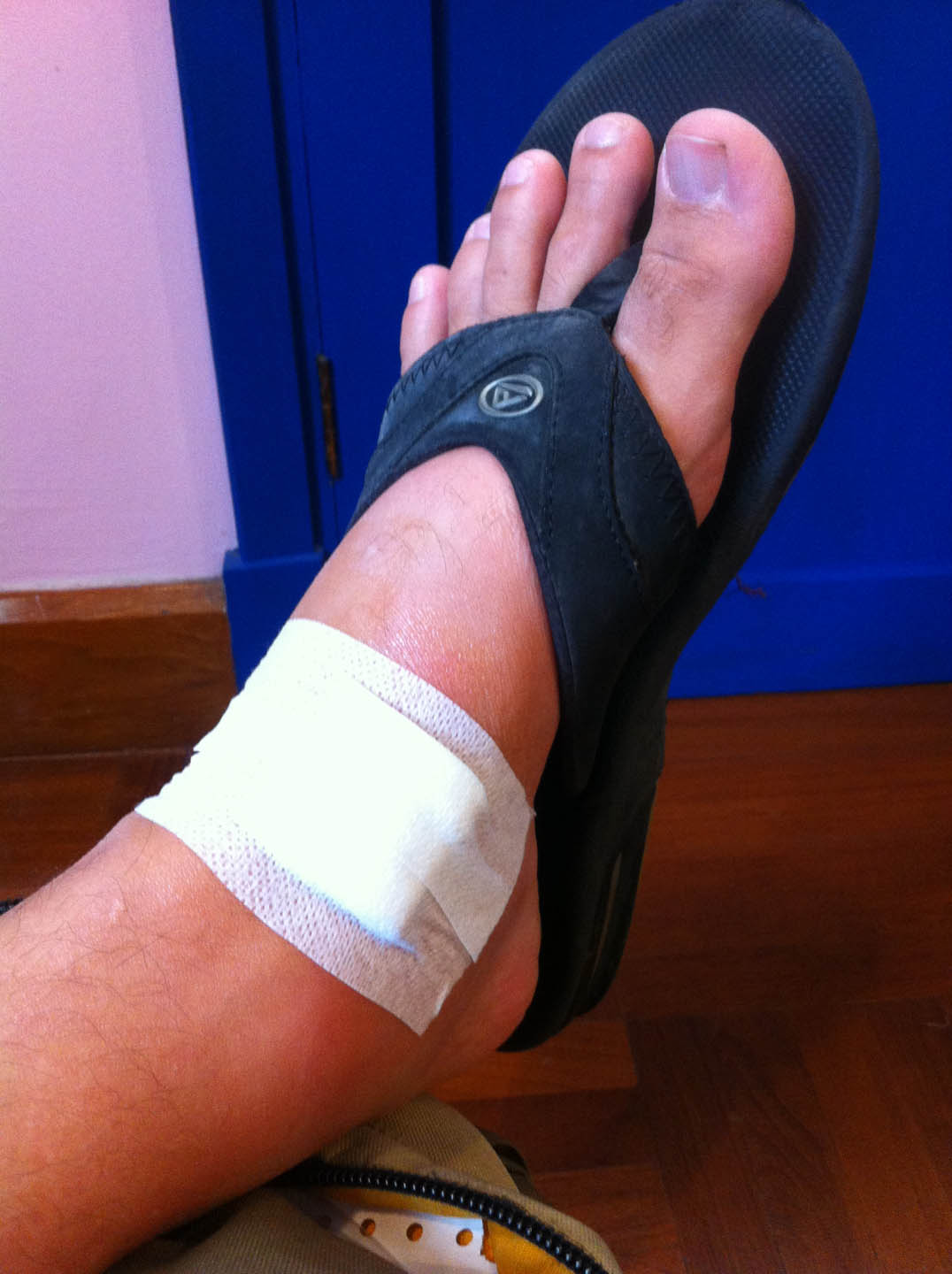
All nicely cleaned up and professionally bandaged.

My visit to Sukhumvit Hospital involves:

  1. Filling out a single page form at reception. (no waiting and <5 min.  It only took that long because I needed to look up addresses for “Person to Notify”.
  2. The staff kindly walks me from reception to ER where I wait <2 min. to see an ER doctor. He proceeds to instruct and observe his 3 helpers in thoroughly clean my wound with 3 different solutions and then scrape some of the dead tissue away. They are very gentle and there is no pain.  The doctor then tells me there is a little infection, it’s not bad, just minor.  Since I’m traveling he’s going to prescribe oral antibiotics (Amoxicillin) and a topical antibiotic (Sodium Fusidate).  He tells me to keep it clean and bandaged and much like my dentist in Chiang Mai he tells me what seems like 10 times that it’s important to take ALL the antibiotics, not to stop early. Total time with the doctor and his 3 helpers, about 10 min.
  3. I’m walked by a nurse down the hall to the pharmacy to pick up my prescriptions. I wait about 2 min and pay my bill while waiting for my prescriptions to be ready.
  4. I walk out.

Total time at the hospital, including time to pick up my prescriptions from the pharmacy, was about 20 min.

Total cost including my prescriptions: 1730THB (about $60 at today’s awful USD to THB exchange rate). So cheap I didn’t bother claiming it on my travel insurance.

Reviewing the week

Still not too worried about it, but I’m happy I got it checked out.  I’m mostly glad I got on antibiotics early before the infection got worse. It might of gone away, but it might not of and taking care of it in 3 days back in the US would have been a huge hassle. Everything is just so easy here. I mean this was pretty difficult “as things go”, find a hospital, get myself to it, deal with potential language issues etc… but in Thailand it STILL ends up easier (and cheaper) than in the US. I spend a lot of time thinking about where I’d really want to live in Asia and Thailand has long been at the top of that list for all these reasons and more. Someday…

Filed Under: Travel

WordPress Genesis 2.0 HTML5 overview of DOM changes

May 16, 2013 by Jon Brown 9 Comments

Genesis 2.0 Beta for WordPress was just released for public review and one of the key features is HTML5 support.  However, HTML5 isn’t on by default though and some may wonder why. So I thought I’d illustrate that by comparing the DOM of one of my test sites before and after enabling Genesis 2.0 HTML5 support. First, the method being used to enable HMTL5 is by using WordPress’ add_theme_support function:

add_theme_support( 'genesis-html5' );

UPDATE: After Genesis 2.0 RC2 StudioPress changed this.  In the final version of Genesis 2.0, this is now:

add_theme_support( 'html5' );

This is the right and sensible way to add this and this is why just updating to Genesis 2.0 won’t break your site.  If all you do is update to Genesis 2.0 you won’t get HTML5 but you also won’t get a broken site as you will if you just toggle on genesis-html5 without making the necessarily changes to your CSS. I simplified DOM a little so it’d all fit on one page, but all the key elements inside <body> are intact.  There are some minor changes in the <head> but the changes inside <body> are what will break existing CSS since ID’s like #content have been replaced with HTML5 elements like <article> and this means your CSS no longer applies.  Also note, this isn’t meant to be an exhaustive guide of every change, just a few major ones and in a simple visual format to answer the question “Why can’t my existing Genesis child theme be magically updated to HTML5 with the press of a button?”.

Major DOM changes between Genesis 1.9.2 and Genesis 2.0 for WordPress I see on first glance:

HTML HTML5
<div id=”wrap”> <div class=”site-container”>
<div id=”header”> <header class=”site-header”>
<p id=”title”> <p class=”site-title”>
<p id=”description”> <p class=”site-description”>
<div id=”inner”> <div class=”site-inner”>
<div class=”post-10 page type-page status-publish hentry entry”> <article class=”post-10 page type-page status-publish entry” itemscope itemtype=”https://schema.org/CreativeWork”>
<h1 class=”entry-title”>The Title</h1> <header class=”entry-header”><h1 class=”entry-title” itemprop=”headline”>The Title</h1></header>
<!–nothing before –> <footer class=”entry-footer”></footer>
<div id=”sidebar” class=”sidebar widget-area”> <aside class=”sidebar sidebar-primary widget-area” role=”complementary” itemscope itemtype=”https://schema.org/WPSideBar”>
<div id=”sidebar-alt” class=”sidebar widget-area”> <aside class=”sidebar sidebar-secondary widget-area” role=”complementary” itemscope itemtype=”https://schema.org/WPSideBar”>
<div id=”footer” class=”footer”> <footer class=”site-footer” role=”contentinfo” itemscope itemtype=”https://schema.org/WPFooter”>

A lot of these could probably be fixed with some careful text search and replace strings, but I think it’s always going to take a little TLC to make sure it’s right.  I’ll probably give it a shot on this site in the coming weeks when the beta has proved itself stable (not problems so far) Here’s the screen shot in FileMerge and DiffMerge:

Genesis 2.0 HTML to HTML5 - DOM Diff Screen Shots
Genesis 2.0 HTML to HTML5 – DOM Diff Screen Shots

Filed Under: Code Tagged With: Genesis, Genesis 2.0, HTML5

  • « Previous Page
  • 1
  • …
  • 10
  • 11
  • 12
  • 13
  • 14
  • …
  • 36
  • Next Page »